
Below are directions to turn on step tracking in the NeuroFlow app for iPhone and Android:
For iOS/iPhone users:
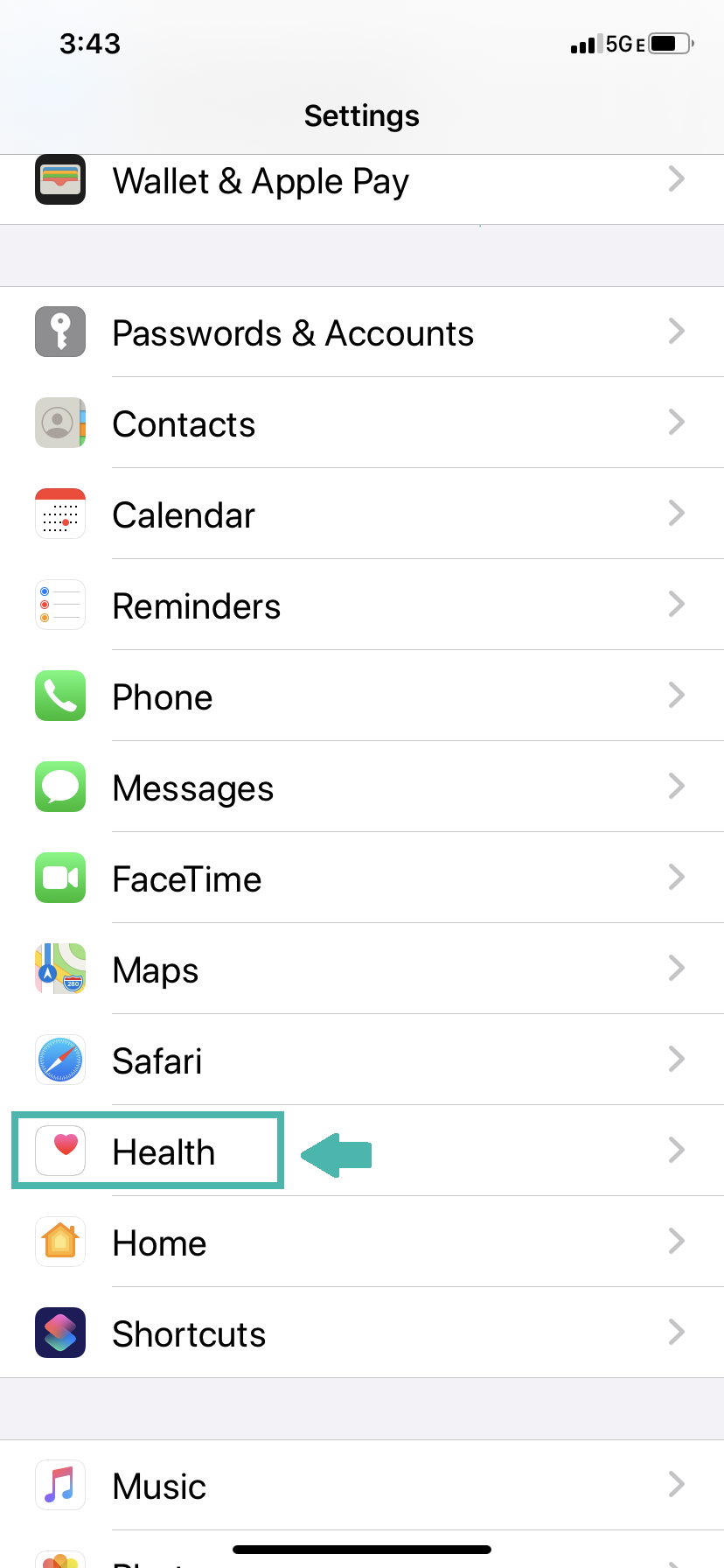
1. Go to the Settings app on your iPhone and click on "Health"
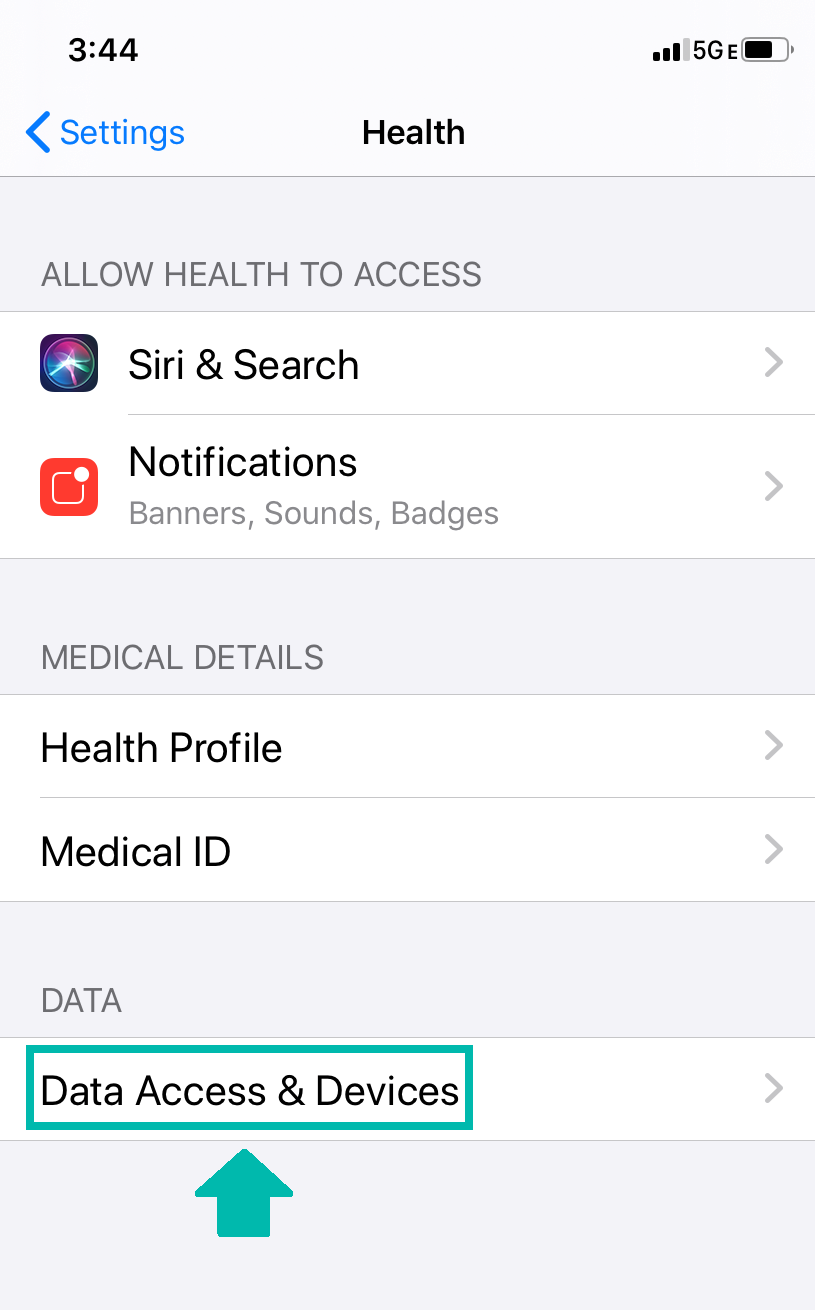
2. Click on "Data Access & Devices"
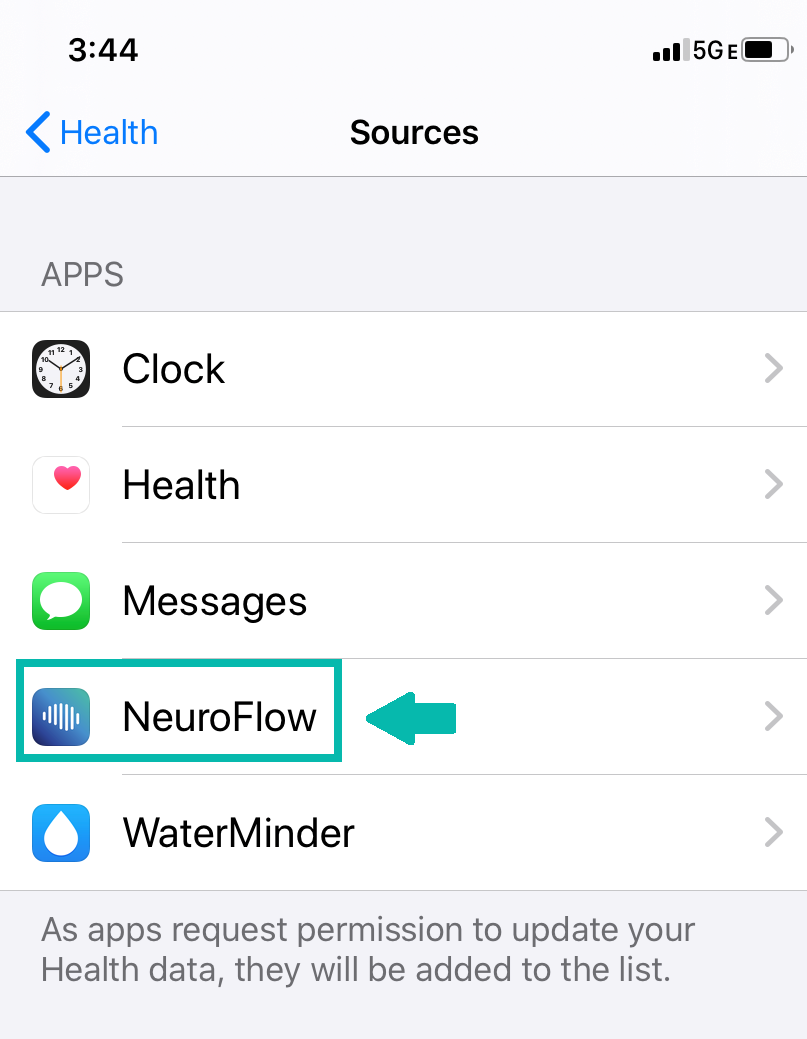
3. Click on "NeuroFlow"
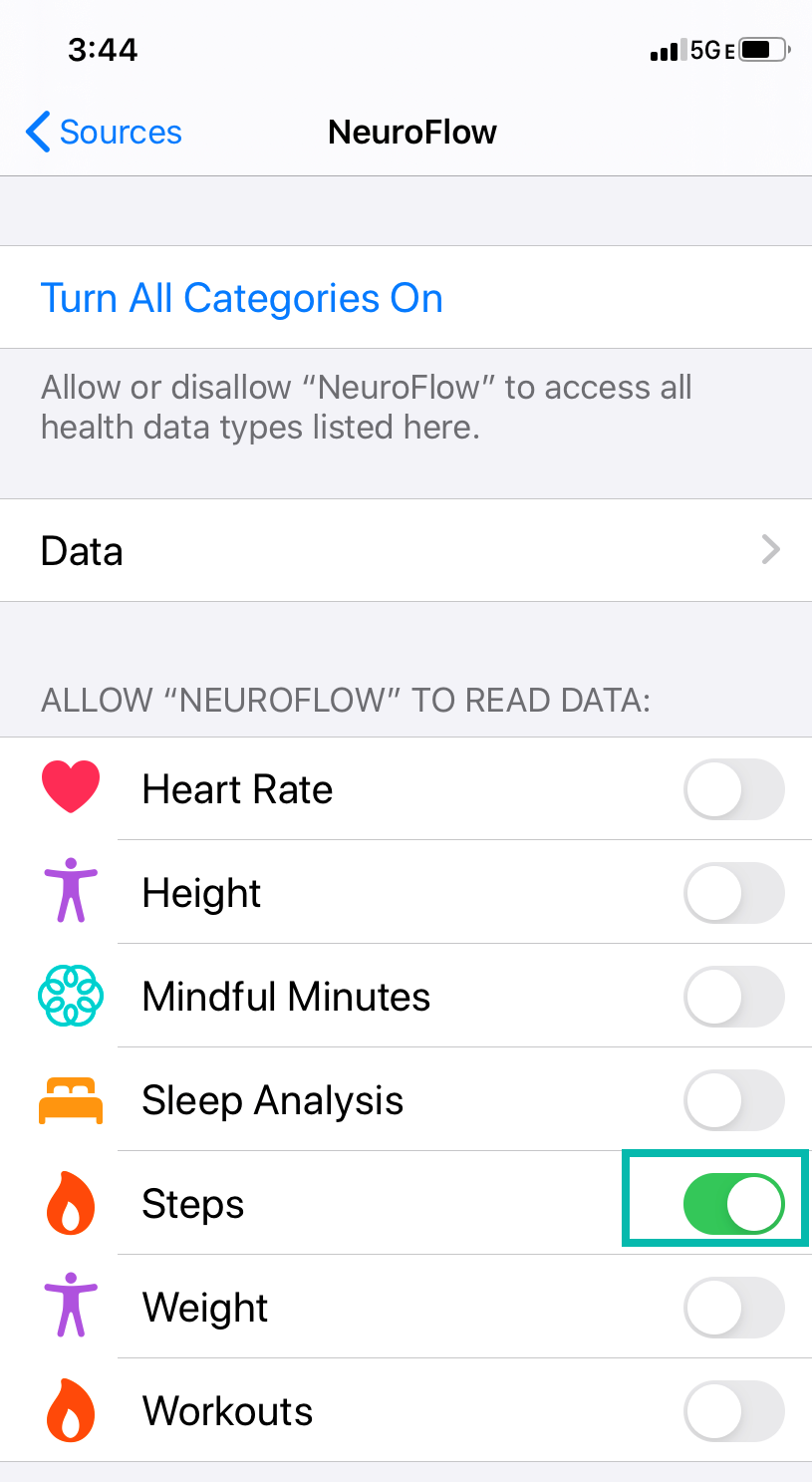
4. Click the toggle to the right of "Steps," which is found under the "Allow NeuroFlow To Read Data"
For Android Users:
1. Login to NeuroFlow app to sync with GoogleFit. If GoogleFit is not set-up, you will see the screen below:

2. If GoogleFit is not ready to sync, download GoogleFit from Google Play. If GoogleFit is already available, proceed to step 3 below.

3. Re-open the NeuroFlow app. Click Step 1 to Connect Google Fit

4. Click "Allow" to access sensor data about your vital signs (steps).

5. Choose an account to select your Google Account

6. Confirm Your Choices and select "Allow"

7. You are now ready to set a goal and start tracking your steps, happy walking!

For any questions, please reach out to support@neuroflow.com.
Comments
0 comments
Article is closed for comments.