
Questionnaires
You can administer one of NeuroFlow's questionnaires in-person with an individual.
1. Go to the Client Dashboard
2. Select "Actions" and click "Do Questionnaire."

From here, you can select from one of the several types of questionnaires available:
- Anxiety and Related Disorders
- GAD-2/GAD-7: Anxiety
- PC-PTSD-5: Primary Care PTSD Screen
- PCL-5: Post-traumatic Checklist
- YBOCS: Obsessive Compulsive Scale
- Chronic Pain
- ODI: Oswestry Disability Index - Lower Back
- NDI: Neck Disability Index
- Substance Use
- AUDIT-C: Alcohol Use Screen
- AUDIT-1/10: Alcohol Use Screen (only delivers full assessment if first question is answered positively for alcohol consumption)
- DAST-10: Drug Use Screen
- BAM-R: Brief Addiction Monitor - Revised
- ORT-OUD: Opioid Risk and Use
- PDUQ-p: Prescription Drug Use Questionnaire - Patient Version
- Tobacco Screening
- ADHD
- ASRS-5: Adult ADHD
- Mood Disorders
- PHQ-2/8/9: Depression
- MDQ: Mania
- Edinburgh: Perinatal Depression
- DASS-21: Depression, Anxiety, and Stress Scale
- WHO-5: Well-Being Index
- Other Assessments
- C-SSRS: Columbia Suicide Severity Rating Scale, Screen Version
- In-House Only: Complete a Columbia screener with a patient in NeuroFlow after a positive screening for suicidal ideation. Assessment can only be completed via in-house assessment flow, and cannot be assigned to a patient to take remotely.
- Health Leads: Social Determinants
- UCLA-3: Loneliness Scale
- DERS: Difficulties in Emotion Regulation Scale
- PQ-LES-Q: Pediatric Quality of Life Enjoyment and Satisfaction
- SDOH: Social Determinants of Health
- SQS: Sleep Quality Scale
- C-SSRS: Columbia Suicide Severity Rating Scale, Screen Version
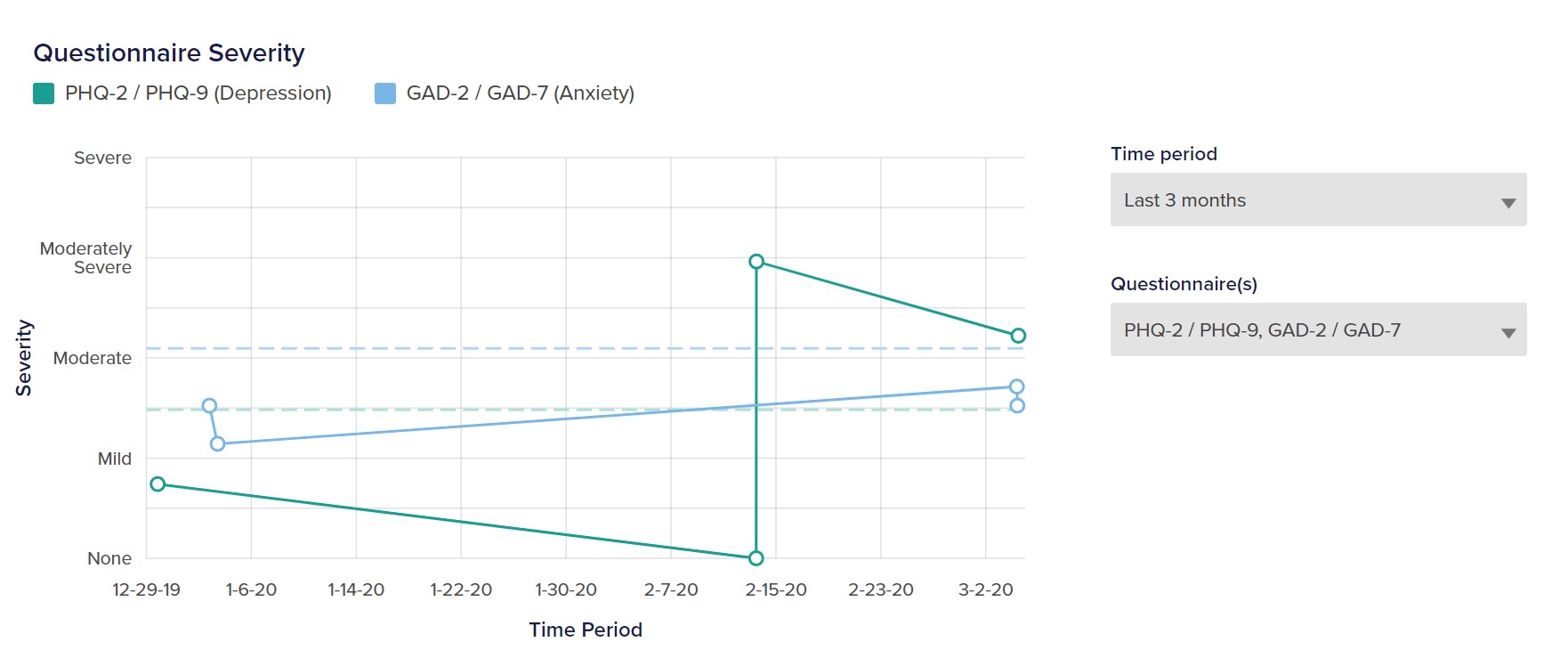
How to View Questionnaire Progress
After completing the questionnaire, you'll be able to see an individual's progress over time under Progress on the Client Profile page.
How to View Questionnaire Answers
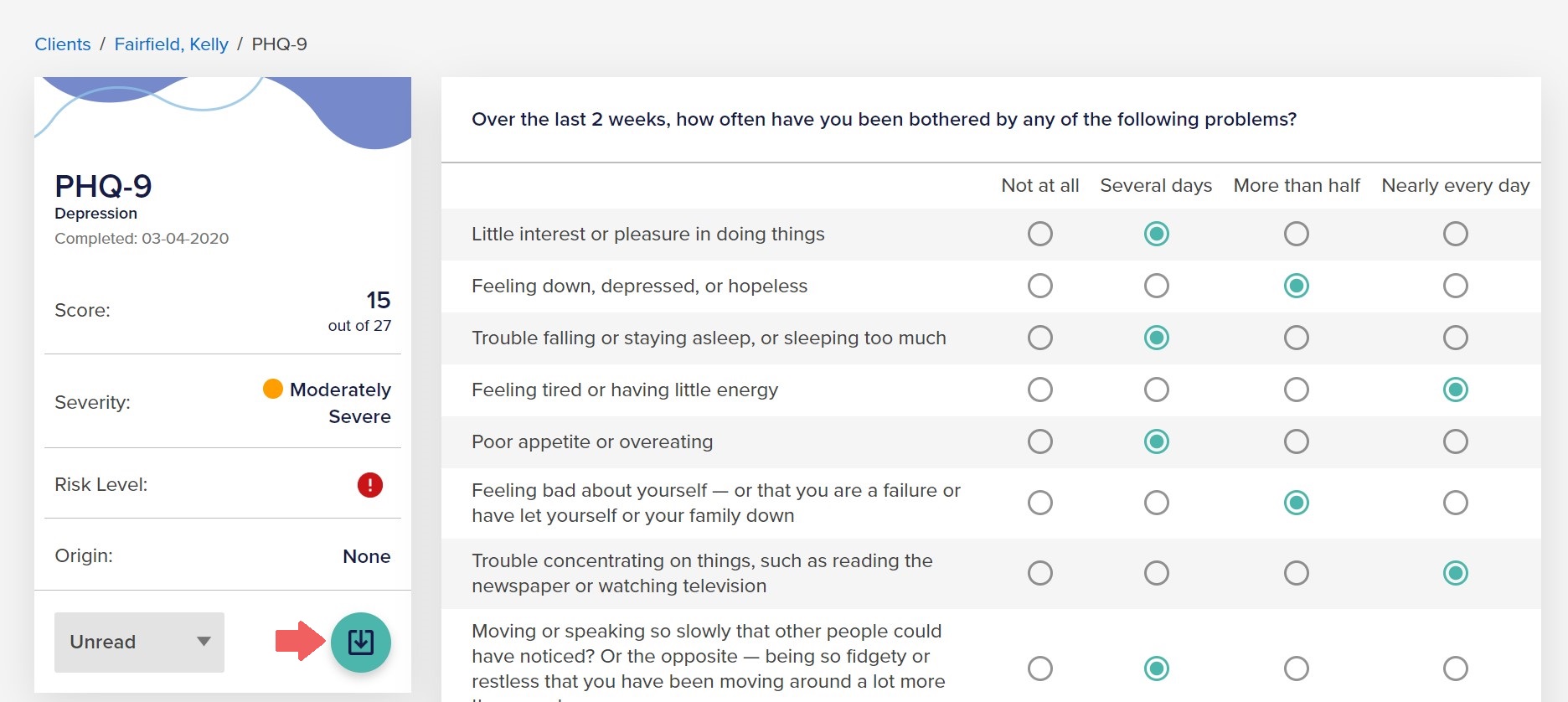
Additionally, you can click the questionnaire to view the detailed answers, and download a PDF if desired for record-keeping, by following these below steps.
1. Within the client dashboard, click the Risk Log tab
2. Click on the Assessment you would like to review

3. Once you click on the assessment, a new page will open that has those assessment details. To download that assessment, simply click on the green button to download a PDF.
NOTE: You can also assign questionnaires as exercises. When questionnaires are assigned directly to the individual, the individual can fill out answers on their own time. Any answers from the individual would then be sent back to you in real-time.
For any questions on questionnaires and surveys, please reach out to support@neuroflow.com.
Comments
0 comments
Article is closed for comments.