
As part of your practice's standard procedures, Urgent Alerts should be reviewed daily with the appropriate action taken depending on the clinical need.
To learn more about Urgent Notifications, please visit the Urgent and At Risk Alerts support page.
Below is a step-by-step guide on filtering and reviewing Urgent Notifications:
How to Filter & Review Urgent Alert Notifications
1. Once logged into the NeuroFlow platform, open the Filter By Task Bar by clicking on  if not already open on the left side of the screen.

2. Once the "Filter By" section is open, click on the "^" next to "Notifications"

3. Check the box to the left of "Urgent." This will filter your client's list for any individuals that have an Urgent alert.

4. For each client, click on the Urgent Alert icon

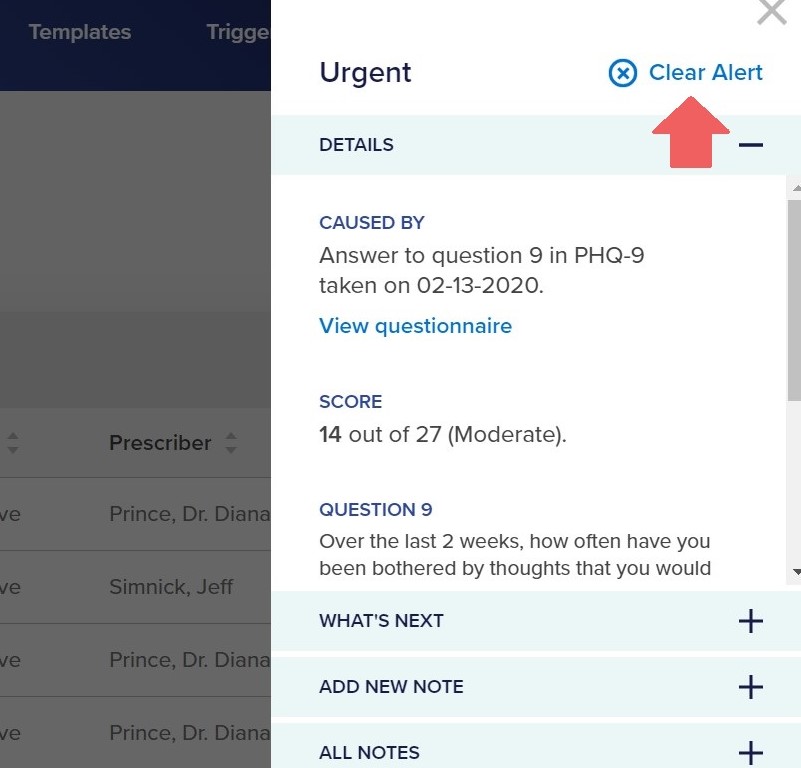
5. A Risk Management Slide Out bar will appear. You can review the details around the Urgent Alert.

To learn more about the Risk Management Slide Out, please visit the Risk Management Slide Out support article.
6. Once you have completed your review and followed the appropriate next practice standard procedures, you can clear the alert by clicking on "Clear Alert."
For any questions or assistance, please contact support@neuroflow.com.
Comments
0 comments
Article is closed for comments.