
NeuroFlow allows you to complete journal entries assigned by your provider/organization or to just keep a personal journal for reflection! Here's a how-to on journal writing.
On Your Mobile App
1. If you've been assigned a journal, it'll show up in your To Do list. Click on the Journal tile.
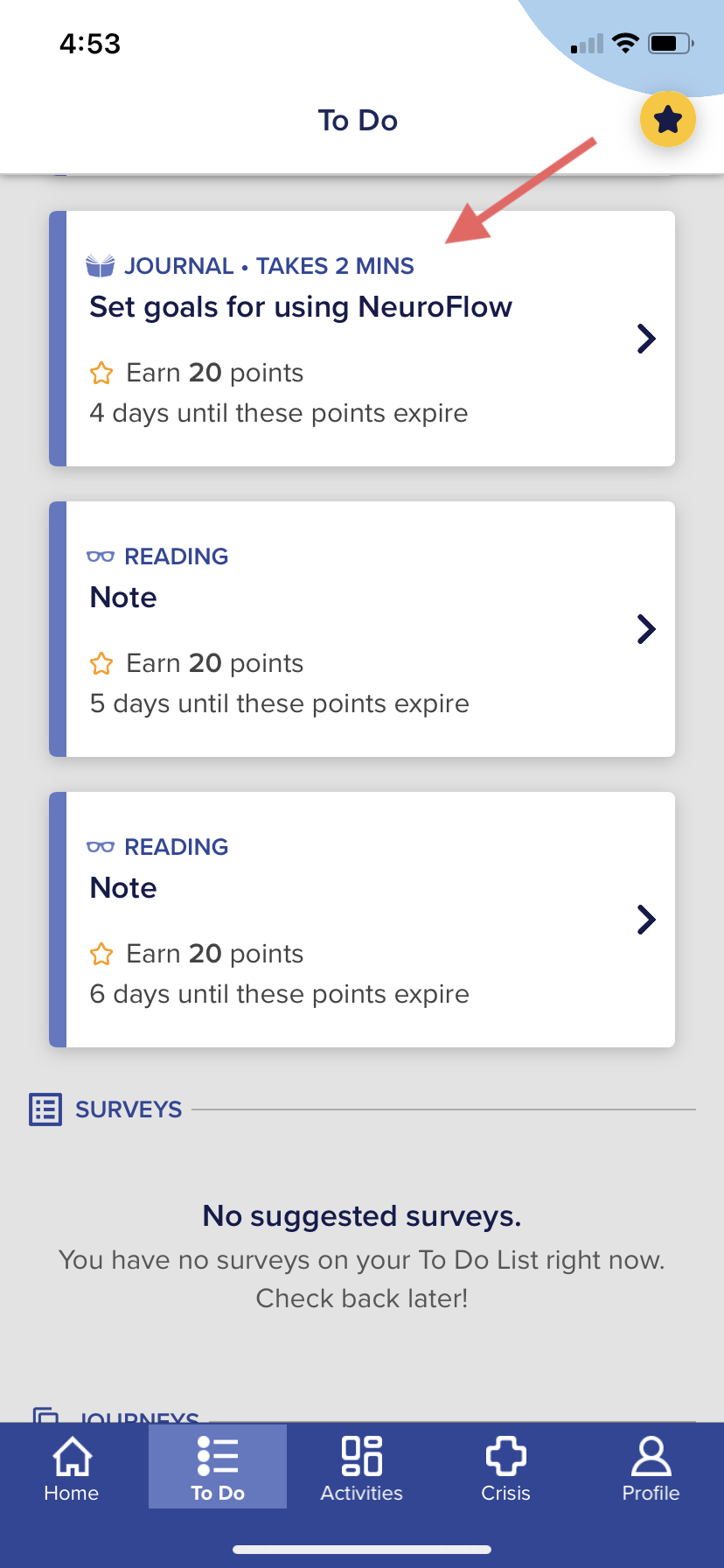
2. Read the instructions created by your provider and click "Write now" when you're ready to write

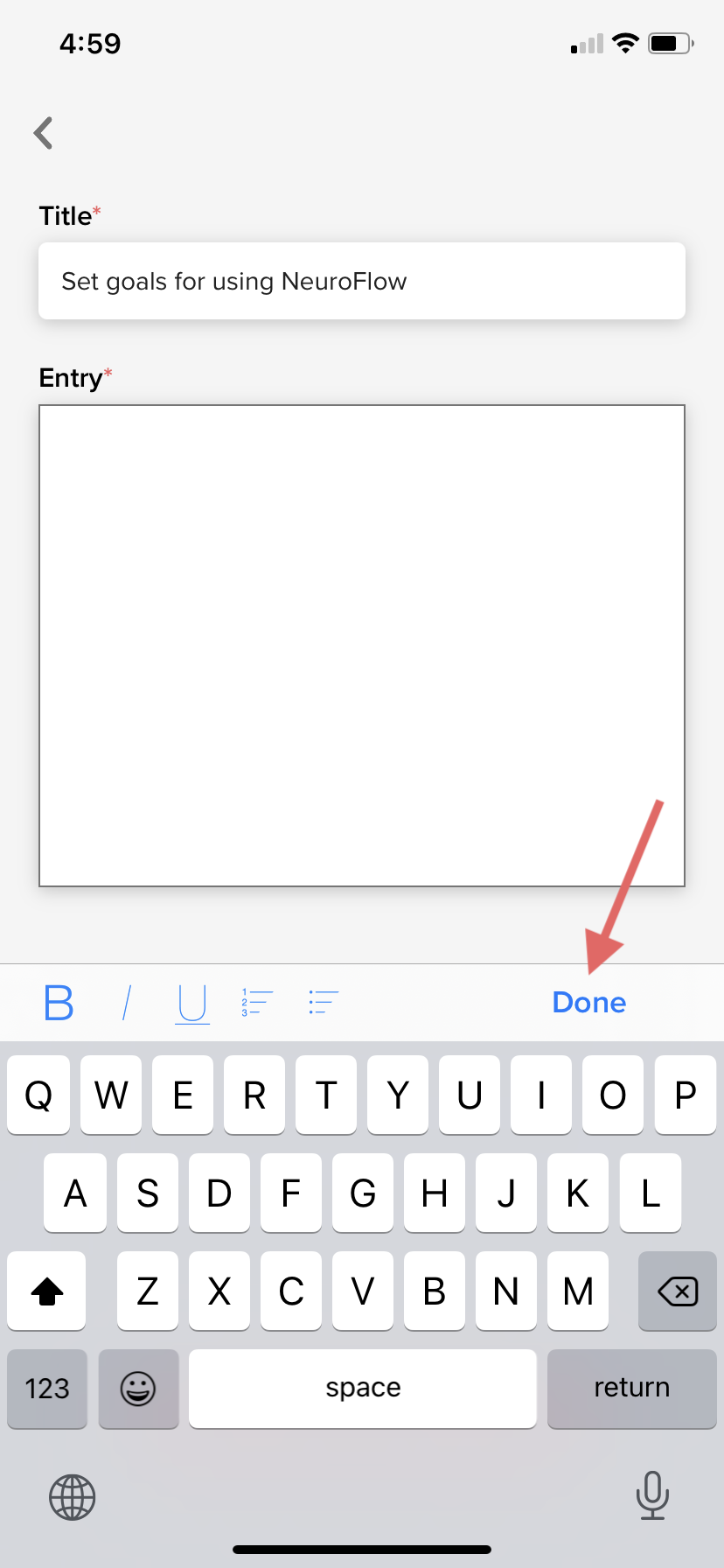
3. Tap the white space under the "Entry" section to start journaling
HOT TIP 🔥 : Click "Done" to hide the keyboard when you're done editing your journal entry
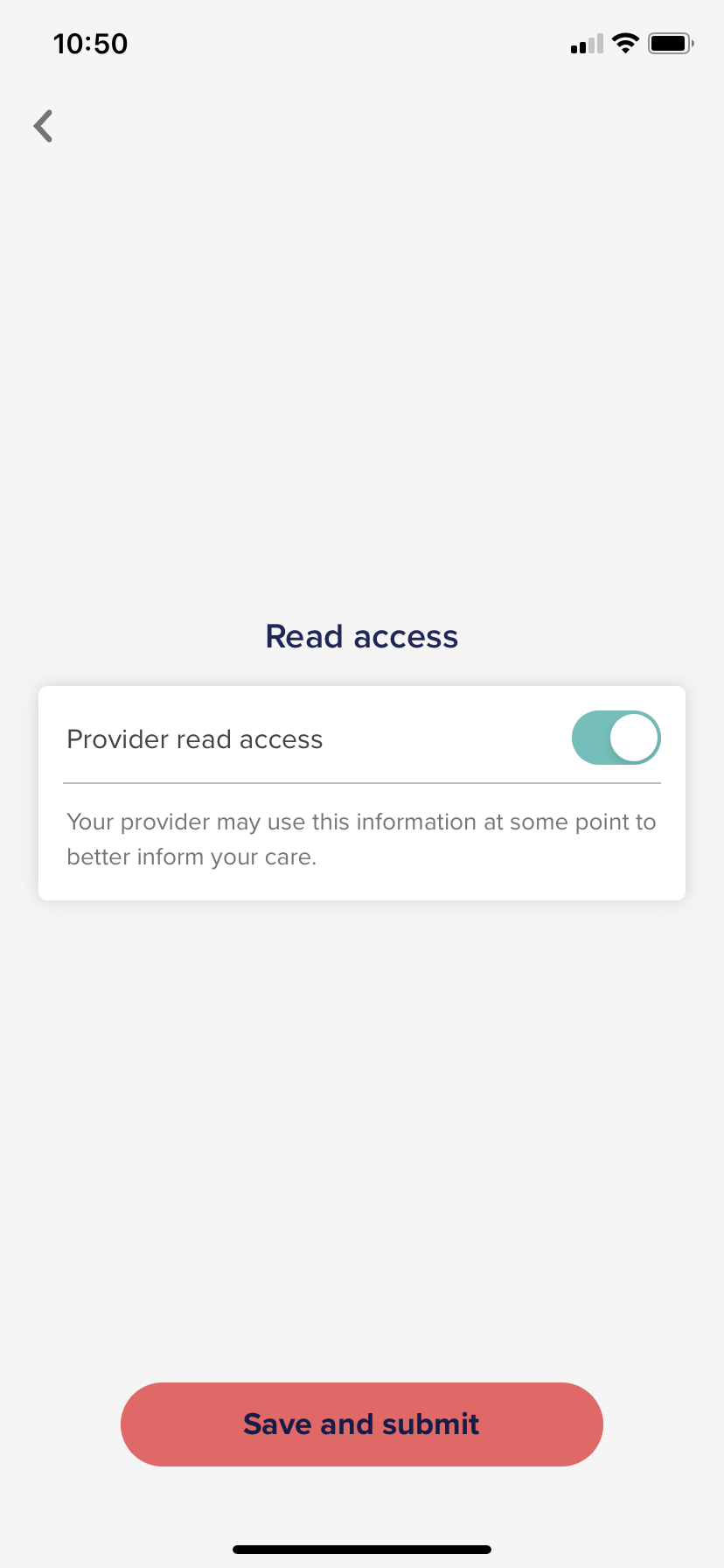
4. Click "Next" and then "Save and submit" when you're finished.
NOTE: if you want to keep what you've written private from your provider, click the toggle to the left next to "Provider read access"
If you're journaling on your own, go to the Activities tab on the bottom bar and click "Write in Your Journal." You'll be able to view old entries or write a new one by clicking the "+" at the top right of the screen (see this article for more help accessing videos from the Activities tab)
On The Web-Version (neuroflowlive.com)
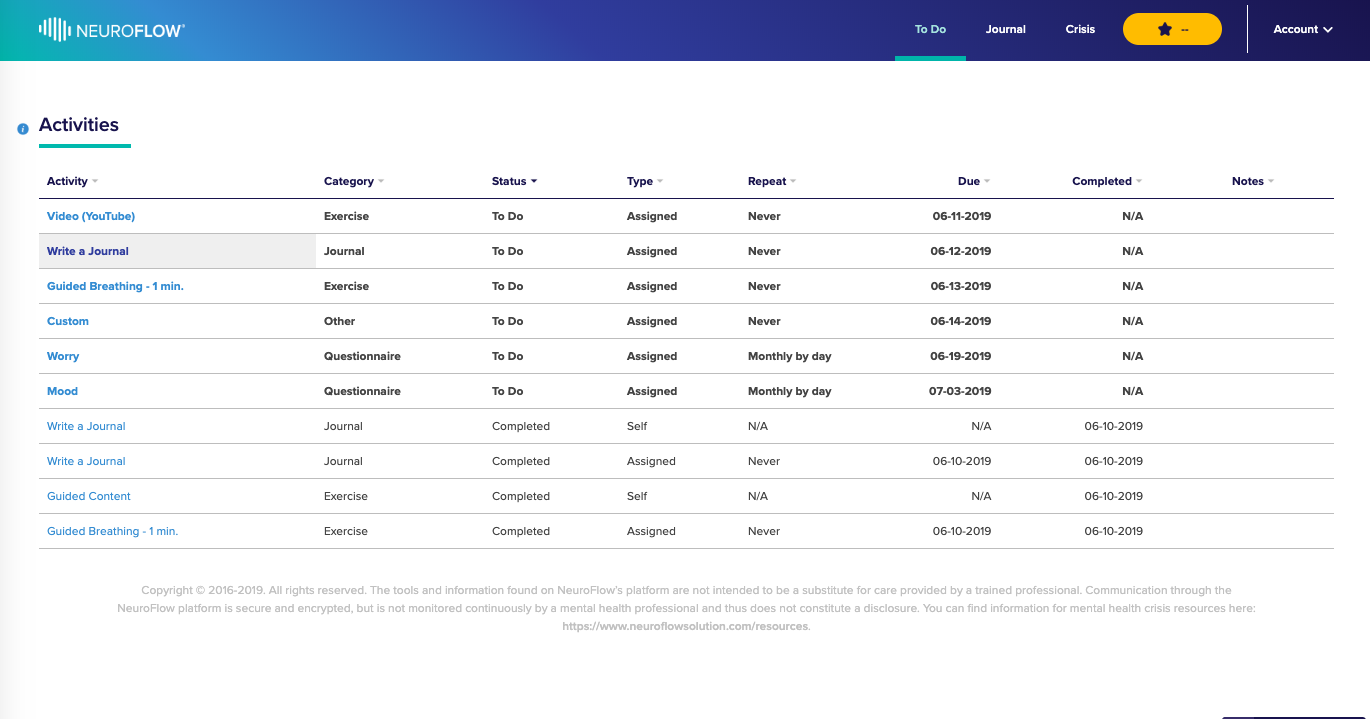
If you've been assigned a journal, it'll show up in your Activities page in the main menu:
1. Click the journal you want to complete and click "DO NOW." The prompt of the journal will show up at the top. This is what your provider has asked you to journal about
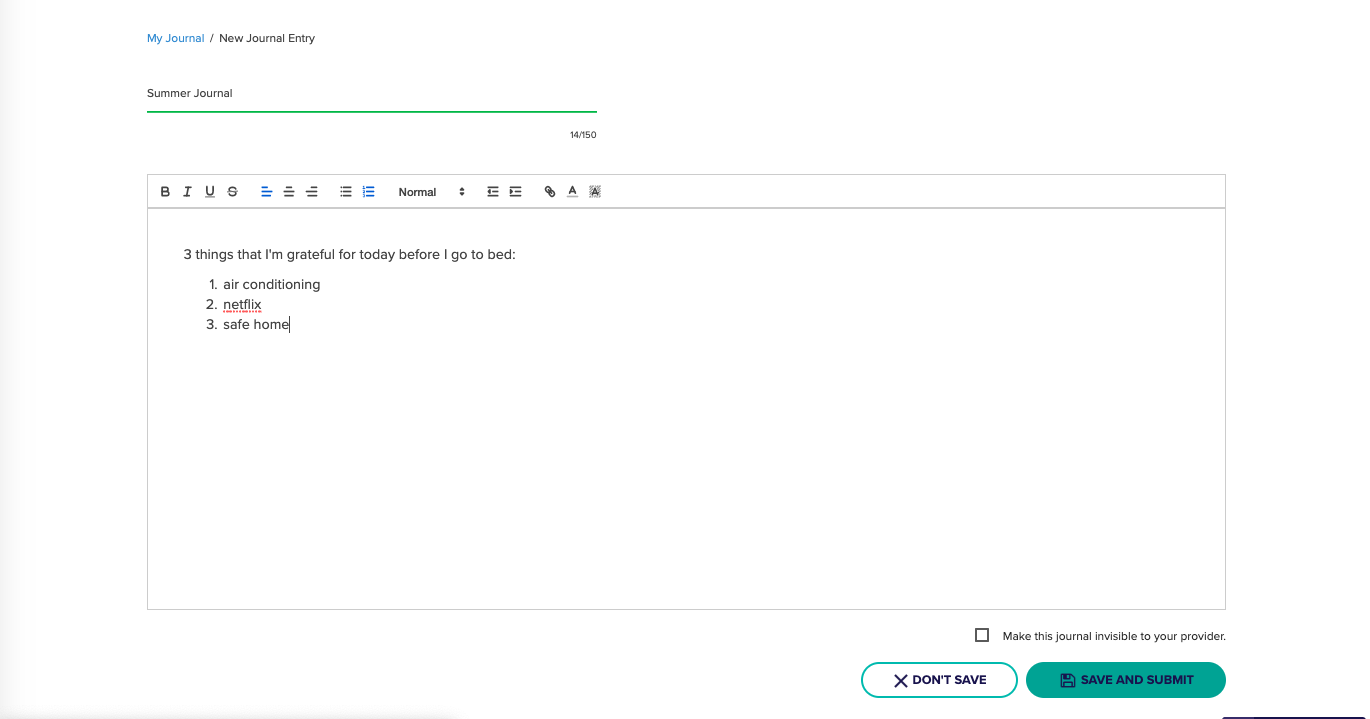
2. Click into the text box underneath the prompt, and start writing!
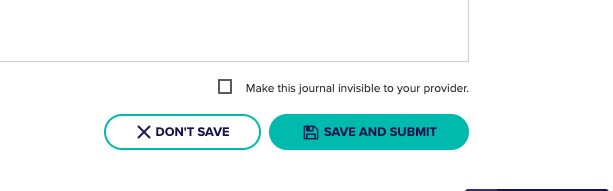
3. Click "SAVE AND SUBMIT" when you're finished
NOTE: if you want to keep what you've written private from your provider, click "Hide journal from my provider" at the bottom of the screen
If you're journaling on your own, go to the My Journal page in your main menu. You'll be able to view old entries or write a new one by clicking the "New Entry" at the top right of the screen.
For any questions about writing in your journal, please reach out to support@neuroflow.com.
Comments
0 comments
Article is closed for comments.